

Build and edit pages
Pages are structured documents with a title, facts and up to 24 sections. You type on the page itself, pick sections from a visual gallery and set each section’s style in a side panel. Unsaved changes are kept as the page’s draft until you save them as one version.
Open or create a page
Section titled “Open or create a page”Open Pages from the main navigation. The library lists the site’s pages, most recently changed first. Each row shows a small picture of the page’s sections, its address, when it changed, whether it is Live, Live · edited or a Draft, and how many of the site’s languages it has, for example “2 of 3 languages · Missing TH”. Search by title or address, and filter by All, Live or Draft. A row’s ⋯ menu opens, renames, duplicates or moves the page to Trash. A duplicate is an unpublished copy of every language.
Trash, beside New page, lists pages moved there in the last 30 days, every language together. Restore brings one back as a draft with its history and opens it. Delete permanently removes it for good after asking. A live page is unpublished first; Move to Trash is not offered while it is live. After 30 days a page in Trash is deleted for good.
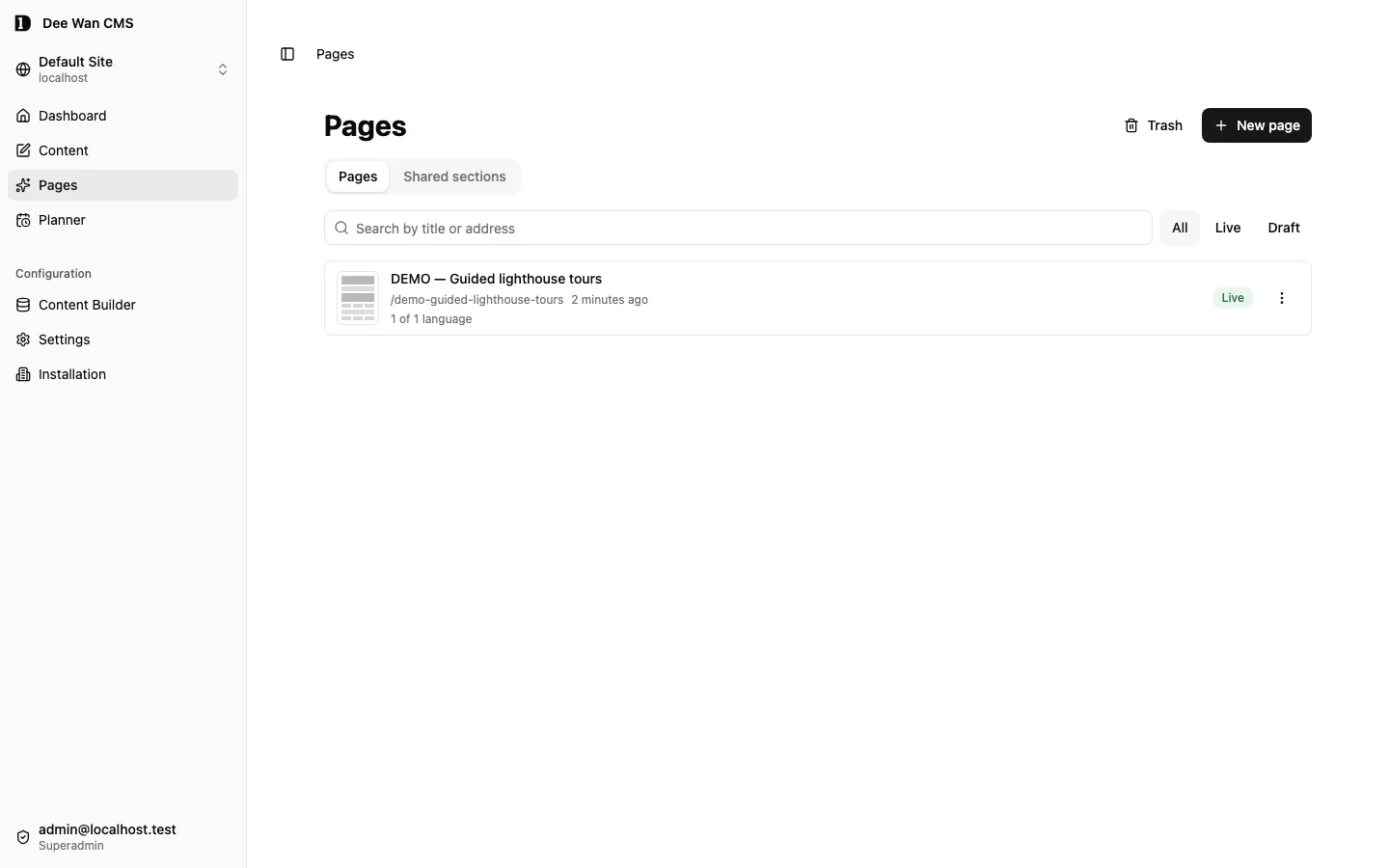
New page offers three starts:
- Start from template: Landing, About, Service, Event, Menu, Pricing or Blog post. A template adds empty sections for you to fill in. It never adds sample text.
- Describe it to AI: say what the page is for and press Generate page. The four examples (landing, about, service, event) only fill the prompt.
- Blank page: start empty and add sections.
Template and blank pages ask for a page name. Page address is optional. Without one, the address is made from the name’s Unicode letters and numbers, including Thai and Cyrillic, with spaces replaced by hyphens. A name with no letters or numbers opens Page address and asks you to type one. Page address takes at most 180 characters.
The top bar
Section titled “The top bar”The top bar holds:
- the page name, with a pencil to rename it
- one status for this language: Live, its own workflow state such as Draft or In review, or Not published when its state says published and nothing is live
- a language choice, when the page exists in more than one language
- the save state (Saved or the number of unsaved changes) and Save
- Preview, only when the site has a verified renderer (see Site preview)
- View page once this language is published and the site has a public address. It opens the live page in a new tab
- the next workflow step. With unsaved changes it saves first, for example Save and publish or Save and submit for review. Review is never skipped
- ⋯ (More page actions).
⋯ holds Ask AI to change the page, Site preview when available, Page settings, Discard changes while you have unsaved work, and a step that takes the page off the site, such as Unpublish. On a narrow screen, Preview and View page move into this menu too.
Edit on the page
Section titled “Edit on the page”The canvas is a Structure preview: section types, order, images, style and arrangement are exact. Typography, colour and theme may differ from the site. Phone, Tablet and Desktop above it set the canvas to 390, 768 or 1024 pixels wide. Choose the active one again for the full width. When the section panel leaves less room than the chosen width, the canvas keeps that width and scrolls sideways. A phone shows no width choice.
Site design
Section titled “Site design”The canvas offers Site design and Structure preview only when all of these hold:
- the site has an active managed release;
- the installation has the render signing key (
MANAGED_RENDER_HMAC_KEY, 32 or more characters); - the site’s own bound host, as
https://<host>, is the address that release was made for.
Site design draws your unsaved working page through that release’s own template, so fonts, colours and spacing are the site’s. Otherwise the editor shows the Structure preview only.
- The render is private. It goes from the editor to the site’s renderer and back, and is never stored, cached or published.
- The drawn page keeps up with your edits. Typing waits for a short pause. Adding, removing or moving a section redraws at once.
- Click a section or a text value in the rendered page to select it. The section panel opens at that field. Selecting a section or field in the panel highlights it in the drawn page.
- Esc in the drawn page returns to the Structure preview with the same selection.
- A failed render never touches your working page. The last drawn version stays with a note such as “Not updated. Showing the last design.” Retry appears when trying again can help: a lost or slow answer, a renderer fault, or a render that did not start. A page the design cannot draw (an empty required field, something the release cannot show, a missing translation, a page too large) is not retried: change the page or switch releases. Structure preview is always one press away.
- A page with an empty name, no sections or an empty required field is not sent. The note says what to fill in.
Site design is different from Site preview: Site preview shows a saved version through a custom renderer. A managed release is prepared and activated in Settings → Source & delivery → Site template (see Managed site templates). A site without an active managed release sees the Structure preview only.
Click a heading, paragraph, list item or button label on the canvas and type. Bold, italic and linked words keep their formatting while you type around them. Empty required fields show a placeholder such as Add heading. Controls for everything you cannot edit by typing are in the section panel beside the canvas (at the bottom of the screen on a phone or tablet): links, images, adding and removing list items, paragraph formatting and style.
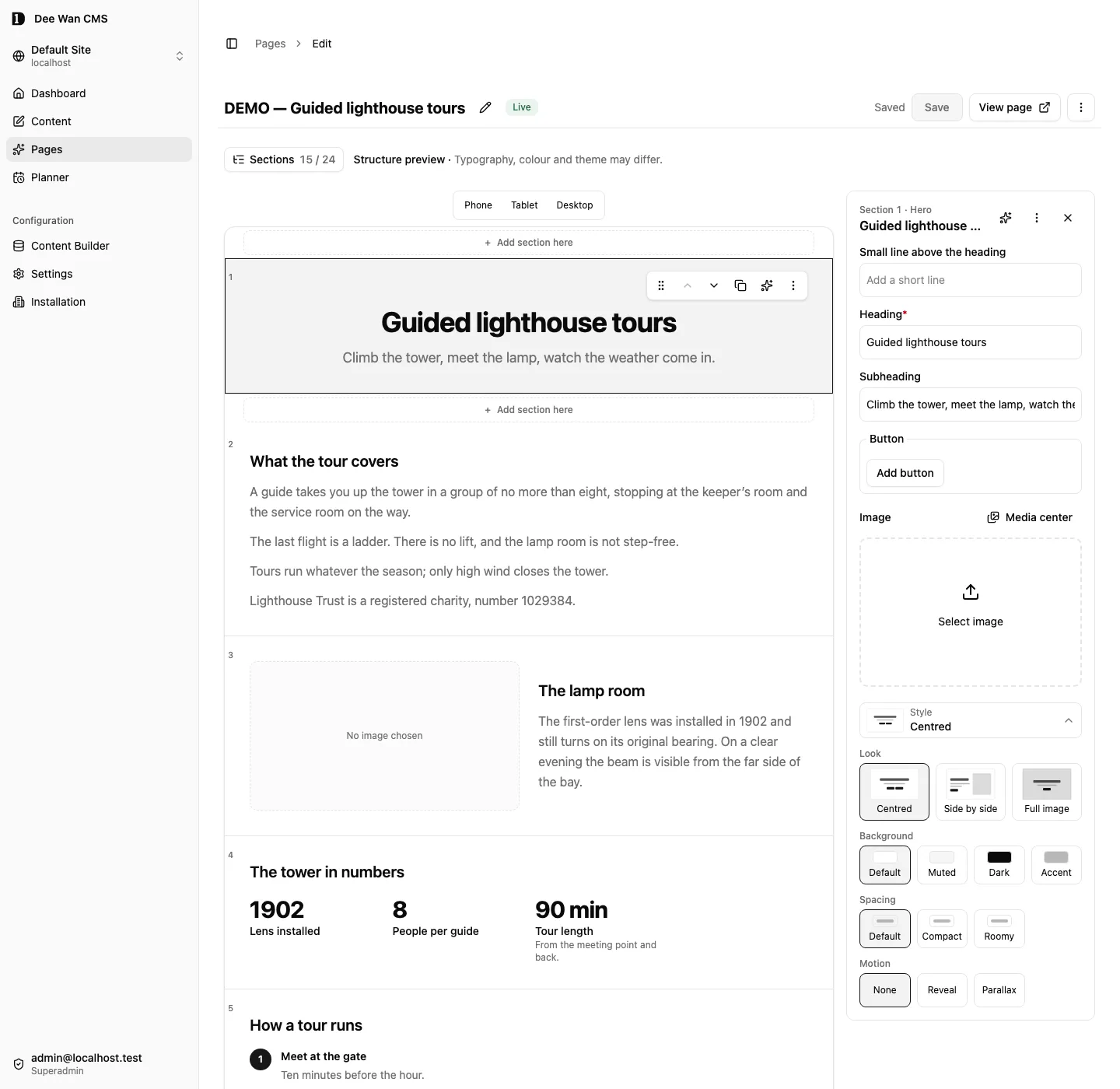
A selected section shows a small toolbar above its content: drag handle, move up, move down, duplicate, Ask AI (the sparkles button) and ⋯. The section’s ⋯ holds Change section type, Duplicate section, Copy section, Paste section after this one and Remove. A copied section can be pasted on any page of this site.
Sections N / 24 opens the section list, where the up and down buttons and the drag handles also reorder sections. Dragging is optional. The buttons and keys do the same.
Add a section
Section titled “Add a section”Use Add section here on the canvas, Add section in the section list, or press / or Ctrl/Cmd+K. The gallery shows a picture of every section type in each of its visual variants, and patterns such as Page header, Big statement, Quote and FAQ. Search by name or description.
The section you pick enters the page at once, with its required fields empty and the cursor in the first one. Save stays unavailable until those fields are filled.
| Group | Section types |
|---|---|
| Openers | Hero |
| Text | Text, Text with image |
| Lists & proof | Feature grid, Cards, Stats, FAQ, Testimonials, Logo strip, Steps |
| Media | Gallery and video |
| Pricing & menus | Pricing, Menu |
| Contact | Contact details |
| Posts & collections | Latest entries (pattern: Latest posts) |
| Forms | Form |
| Custom | The sections your developer registered for this site |
| Calls to action | Call to action, Site search |
| Shared sections | This site’s shared sections, by name |
Latest entries lists the newest published entries of a public collection. The Latest posts pattern fills it in for a Blog’s posts. Choose the collection, fields and count in the inspector; see Blog sites.
Form collects what visitors type. In the inspector you set its fields (label, kind, required, help text and, for a choice, its options), an optional consent statement, the button text and the message shown after sending. Where submissions go is not part of the page: set it in Settings → Integrations → Website forms (an email address or a signed webhook). Forms take no submissions until that is switched on. On the canvas, select the form and use Preview to see each state a visitor can encounter: sending, needs fixes, already received, sent, too many tries, not sent and not taking submissions.
For files, choose File upload. Set File types (for example .pdf, .png), Maximum files
and Maximum size per file. Empty file types allow all supported images and documents. Uploads
are bounded to 5 files and 10 MiB per submission, with at most 5 MiB per file. Files stay private with
the submission and are downloaded from its receipt; see File attachments.
Custom sections are ones a developer registered through the site design (see Managed templates). Each is a fixed version: its fields come from that version, and the canvas shows the values with a note that the site design draws the final look. When a newer version is available, the inspector offers Update section. Values the new version still accepts are kept and the rest start empty. Updating changes this language only.
Site search puts the site’s search box on a page, with an optional heading and the text shown inside the box. Visitors get results in the page’s language. It is offered only while site search is on in Settings, whichever design draws the site. If search is turned off later, a page that still holds the section cannot be saved until it is removed.
Saved patterns come first in the gallery when the site has any. A saved pattern holds sections with their words, saved from a page. Inserting one adds a copy: later changes to the pattern never change a page that already used it. To save one, open a section’s ⋯ menu and choose Save as pattern…, then name it and tick the sections to keep. Manage saved patterns, below the gallery, renames or deletes them; pages keep their copies either way.
Shared sections keep one piece of content in one place and show it on many pages: an announcement, a promotion, footer content, a call to action. Make one under Pages → Shared sections → New shared section. It opens in this editor: add up to 6 sections (no form, site search, custom section or other shared section), then save and publish it like a page. It has no address of its own, and the editor shows Used on N pages.
Pick one from the gallery’s Shared sections group to add it to a page. The page keeps a link to it, not a copy:
- The canvas draws it as it is published, marked Shared, with Edit shared section. Change it there; once you publish it, every page using it shows the change. A draft never shows on a page.
- ⋯ → Make a separate copy turns it into ordinary sections in the current language, using the content shown in that language. Other languages keep the link. Later changes to the shared section no longer reach the copy.
- A page cannot be published while a shared section on it is unpublished. The quality list says which one.
- Unpublishing a shared section lists every page using it and asks you to confirm. Those pages then show nothing in its place.
- A saved pattern cannot hold a shared section. Copy and paste keeps the link on this site only.
The gallery offers only what the site’s renderer can show. Without a renderer, every type is offered, except Site search while search is off.
Reusable components
Section titled “Reusable components”A reusable component is a section you made once and can add to any page of this site. It is made from a section on a page, built in isolation and reviewed before anyone can use it.
Make one. Open a section’s ⋯ menu and choose Save as reusable component…, name it, and
optionally say what should change, for example “larger heading”. The section’s words become fields
people fill in each time it is used. This needs the site:deploy and ai:generate permissions. A
section made of words and images can be saved; a form, site search, latest entries, custom or shared
section cannot, and a section with missing fields must be completed first. AI writes the component
and its fields, the platform refuses code that imports anything but the page contract or accesses the network, and the build then runs with the network off. It takes several minutes. If no answer
arrives the form says the component may still have been made.
Review it. Pages → Components lists every component with each version’s state: Awaiting
review, Ready to use, Rejected or Removed. Review shows the 8 build checks, the
fields it asks for, what it imports, a preview of its own sample content (every field filled, or only
the required ones) and, with site:infra, its source code. Use this component needs site:deploy.
The same person who made the component may approve it; there is no second reviewer. If the site’s
design changed after the build, Use this component is unavailable until you choose Rebuild. Reject keeps the
record and cannot be undone. Using a component changes no page.
Use it. A component that is ready appears in the gallery with the other custom sections, under its name. The page keeps the exact version it was given. A newer version never changes a page: the section panel offers Update section, as for any custom section, and updating takes the newer version of that component. A page that uses a component is stored in page format 3 (see Page contract).
New versions and copies. In the Components tab, ⋯ on a component with a ready version offers
Make a new version…, which asks AI to change the current code, and Copy as a new component…,
which starts a separate component from the same code. Copy to site… copies the ready version to
another site where you have permission to build (the list shows only those sites). You need site:infra here to read
the component’s source and site:deploy in the other site; AI is not needed. The copy is a new
component there, with its own name and key, built and reviewed in that site like any other and
awaiting review there. It shares nothing with this site: no page, no pinned version, no build. This
site’s component and pages are not changed. Only a version that was reviewed can be copied. If an
answer is lost, try again: the same copy is returned instead of a second one.
Limits. The site’s design holds at most 16 custom sections and components together; every older version still in it counts. Making components needs the same setup as template candidates: AI, the isolated build service, its sandbox image and artifact storage. Without them the tab says what is missing and nothing is built. A build that no version of any page pins, and that is neither the accepted design nor part of a release, is removed from storage 90 days after a daily check first finds that nothing references it (a version never promoted counts its 90 days from when it was made or rejected). A page that pins a removed version cannot be published, and a page version that pins one cannot be saved or restored; the message names it. A removed version cannot be used or approved again, and making the same content again is refused by name. Save the section as a new component under another name, or change its content.
The section panel shows a style line, for example “Side by side · Muted · Roomy”. Click it to choose:
- Look: the section’s layout, shown as pictures, such as Centred, Side by side or Full image for a hero
- Image position for a text-with-image section
- Background: Default, Muted, Dark or Accent
- Spacing: Default, Compact or Roomy
- Motion: None, Reveal or Parallax. The canvas names the motion. The site plays it.
Style applies to the language you are editing.
Links, images and text
Section titled “Links, images and text”A link goes to a page of this site (search by name or address), a web address or an email. Paragraphs support bold, italic, links and bulleted or numbered lists from the toolbar above them. An image comes from the media library. Add alt text saves the description to the media library for this language.
Undo, save and the quality check
Section titled “Undo, save and the quality check”Ctrl/Cmd+Z undoes and Ctrl/Cmd+Shift+Z (or Ctrl+Y) redoes up to 100 changes to the page since the last save. Facts and required wording are not included in undo history: undo leaves them as they are, but they are saved, discarded and kept in the draft with your other changes. Alt text saved to the media library stays saved. Typing in one field counts as one step. History clears when you save or discard.
With a section selected and no text field focused: Alt+↑/↓ moves it, Ctrl/Cmd+D duplicates it, Delete or Backspace removes it after asking, and Esc deselects it.
Save changes or Ctrl/Cmd+S creates one version from all your changes to the language you are editing: the page name, facts, required wording, sections and the settings that enable layout controls. It never changes another language. Either all changes are saved or none are: a refused save writes nothing and keeps your changes. If the answer is lost, or the server answers in a way the editor cannot read, the save may have happened. The save state reads Save outcome unknown and Retry save sends the same save again. It is replayed, never saved twice. The same holds for creating a page, applying AI changes and setting the first address. The address, workflow, publishing, preview and deleting the page are separate actions, not part of Save changes. Discard changes asks first, then returns to the saved version. Removing a section shows a notice with Undo, which puts the section back without saving anything, and View history, which opens the saved versions.
Below the top bar, Finish before saving (N) opens by itself while something must be fixed. N counts every row. Check the page lists them, for example “2 to fix · 1 suggestion”. When only suggestions remain it reads Suggestions (N) and stays closed until you open it. Each row takes you to its section and field.
- To fix (Save is unavailable): an empty required field, text that is too long or contains
<or>, an unusable link, a site search section while site search is off. - Suggestion (never blocks): an image without alt text, a link to an address that no page on this site uses, a section that holds only a heading, another language of the page not translated yet. The language row opens that language.
An empty page name also blocks Save. It is listed under the top bar.
Drafts and editing together
Section titled “Drafts and editing together”Unsaved changes to a page are kept on the server as that language’s shared draft, for 30 days after the last change. The draft belongs to the page and language, not to you: other people who may read the page can see it.
- One editor at a time. The first editor to open a page language holds its editing lease. Only that editor writes the draft, saves, or moves the language through the workflow. The lease is renewed while the tab is visible, ends when the tab closes, and lapses two minutes after the last renewal. Imports, plugins and scheduled publication are not blocked; the version check still protects the editor’s save.
- Others read along. Another person who can edit the page sees “<name> is editing this.” The editor is read-only and follows the holder’s draft: it checks for a newer draft every 10 seconds while the tab is visible. Your own second tab says “You are editing this in another tab.”
- Who can see it. A person who may only read the page sees the draft as it was when they opened
the page. Seeing a draft needs read access to the page itself: a role that reads only its own
pages sees a draft only for a page language it owns. A role that cannot read the page title gets
the draft with an empty title, and a role that cannot read the page’s sections gets no draft at
all (
field_denied). This holds for every draft answer, a conflict included. - Take over moves the lease to you at once, and you go on from the holder’s shared draft. They
see “<name> took over.” and their next save is refused. Their unsaved changes are also kept
as their own recovery draft, and their draft state reads Not saved — taken over. An autosave
or a discard they send after the takeover is refused and changes nothing. A refused discard says
Not discarded — taken over. Your work is kept. Back to list leaves
without taking over. Holding or taking over a language needs your role to change that language
(
locale_deniedotherwise), and a role that edits only its own pages must own that language’s page (not_ownerotherwise). - Recovery drafts are private. Only you see your recovery draft. When you hold the lease again, the editor offers it: Restore changes, or Review changes if the page was saved in the meantime. Discard drops it.
- AI drafts are private. An AI answer you have not applied, and an AI request for a page that does not exist yet, are kept as your own drafts. No one else sees them.
The top bar says Saving draft…, Draft saved, or Draft not saved with Retry. A draft that cannot reach the server stays in this browser (Offline — kept here) until it can. A shared draft made on the version on screen opens with the page. One made on an older version shows Unsaved changes from an older version with Review changes or Discard. If the server’s draft changed while this browser held changes it had not sent, choose Use the other device’s or Keep this one. If someone saved first, the review lists what overlaps and never saves on its own. Save changes removes the draft. A draft is not a version and never appears in the history.
Ask AI for a change
Section titled “Ask AI for a change”Choose ⋯ → Ask AI to change the page, or the sparkles button on a section. The Ask AI panel floats at the bottom of the screen. Choose Whole page or Section N, describe the change, and press Generate changes (Generate section changes for a section) or Ctrl/Cmd+Enter. A page with no sections shows the request box on the page itself, with Generate page. For a section, Shorter, Friendlier, Fix spelling and Fill empty fields fill in a request for you. They do not send it.
Recent lists the last 20 requests you sent from this browser, newest first. Choose one to fill the box; it is not sent. Clear recent empties the list. The list belongs to this browser, this site and your account. It is never sent to the server.
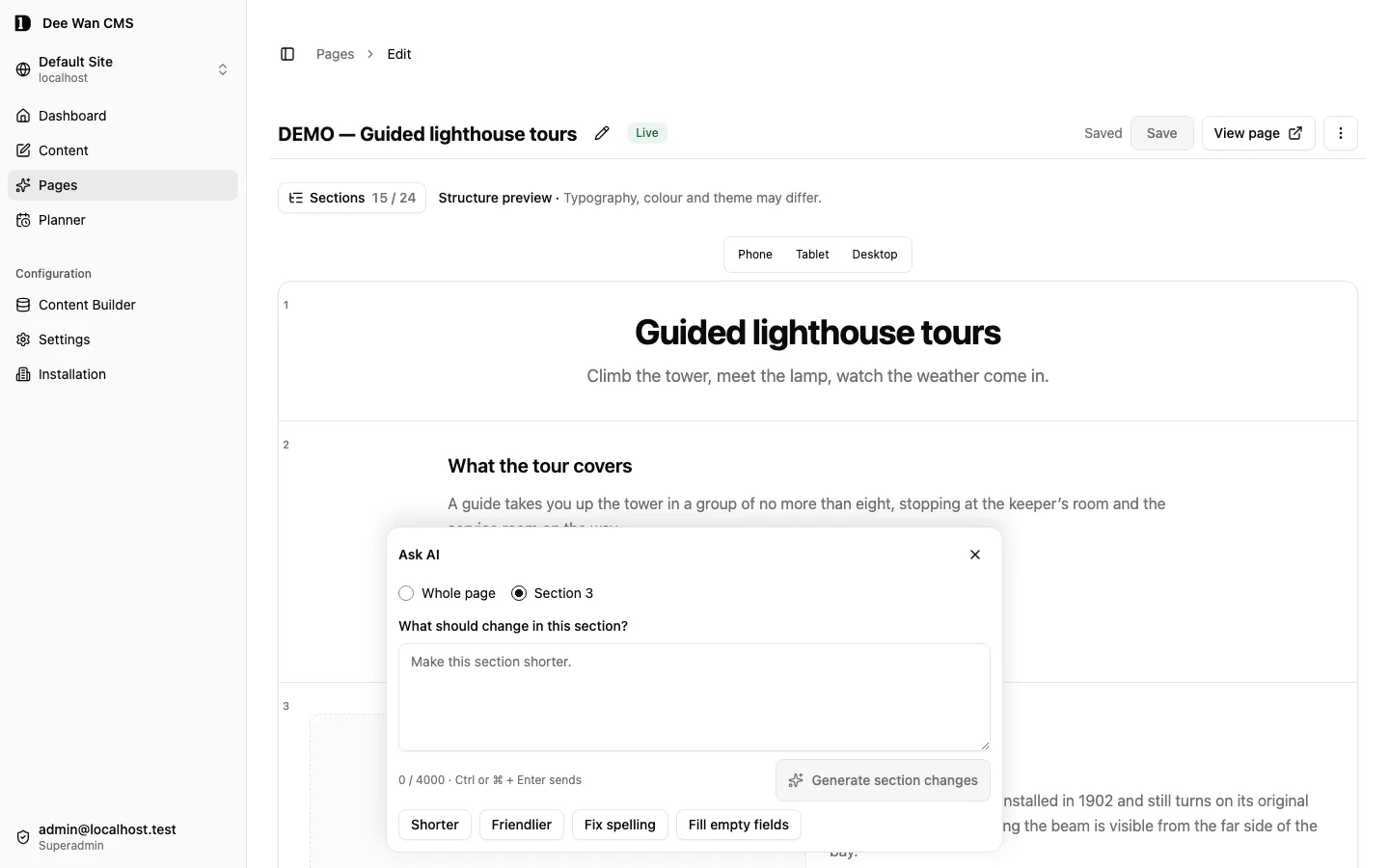
AI works from the page as you see it, including unsaved changes, plus the site settings and the page’s saved facts. You can type a request at any time, but it is not sent while a required field is empty or while facts have unsaved edits. The panel says why, and Save changes saves the facts first. It only uses section types and styles the site’s renderer can show.
The answer is a proposal shown on the canvas. Switch between Current and Proposed. Inserted, changed, moved and removed sections are marked, and Previous change/Next change walk through them. You may keep some text changes and drop others. An answer that adds, removes or moves sections is applied or discarded as a whole. Applying the proposal puts the accepted changes into the page, together with your unsaved edits, and saves everything as one new version. The answer stays until that save succeeds or you discard it. If the save is refused, for example because the answer omits required wording from the facts, nothing is saved: the page goes back to how it was before you applied the proposal, your own unsaved edits stay, and the answer is still there. If the changes would leave the page with something to fix, nothing is applied. If another save completed first, the changes are kept for review. An answer that has not been applied is kept as your own draft. After a reload, or on another device, Show it brings it back; it is never applied until you choose to apply it.
Page address
Section titled “Page address”A page without an address can be saved as a draft but cannot be published. The editor shows “This page needs an address before it can be published.” with an Address field and Set address, and the publish step names the same reason. Save or discard your page changes first: the field is unavailable while there are unsaved changes. An address another page already uses is refused.
Set address sets the first address. People who cannot edit the page see that someone who can has to give it an address.
To change an address later, open ⋯ → Page settings and press Change beside the address. The change is saved as a new draft version. The live page keeps its old address until that version is published; publishing adds a redirect from the old address (see Search and sharing).
Page settings
Section titled “Page settings”⋯ → Page settings opens a panel with the page address, Facts, Workflow, Version history and Move to Trash.
Facts are generation inputs, not text pasted into sections. Required wording must appear exactly as written: an AI proposal that leaves it out is refused, and so is a save of a page without it. Editing facts or required wording changes the page like any other edit: there is no separate save in the panel, and Save changes saves them with the rest of the page.
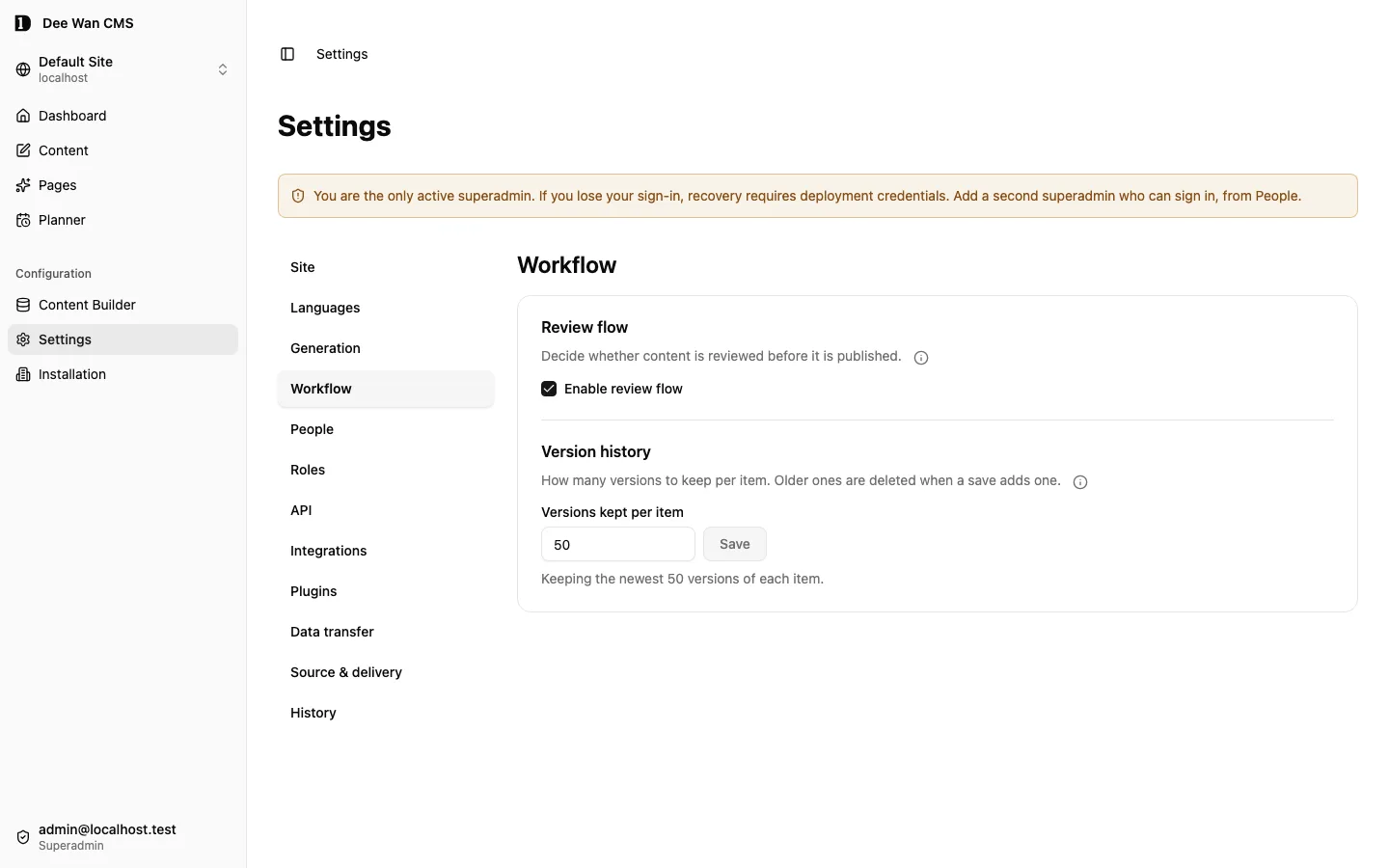
Review is a site setting under Settings → Workflow. The page’s Workflow panel shows its assignment, its history and the actions the workflow allows. Publishing exposes a saved version. On a page with more than one language, each language has its own state and its own actions, such as Publish Thai or Unpublish Thai; they move that language only. The other actions move every language, such as Publish all languages. One language can stay live while another is in review. An all-languages move between two unpublished stages, such as an approval, leaves a language that is already live as it is; take it off with its own Unpublish action. Drafts and unapplied AI proposals are never published. A page that uses something the site’s design cannot draw is refused, and the message names it: a custom section version the active design does not include.
Site preview
Section titled “Site preview”Without a verified renderer, the editor shows the Structure preview only and offers no Preview or Site preview. Publishing works. The editor cannot verify how the site renders the page. Editing never depends on a renderer. View page does not need one: it opens the published page at the site’s public address.
A renderer is verified under Settings → Source & delivery → Advanced — custom renderer
(see Preview and the generated client). Its address must use HTTPS. Plain
HTTP is allowed only for a loopback address such as localhost. Once it is verified, Preview
opens the saved page in a new tab. When the renderer also supports the editor, ⋯ → Site
preview shows a saved version as the site renders it and names it, for example “Saved version 7
as the site renders it”. The site marks it “Preview of a saved version. The live page may differ.”
Unsaved changes are never sent to the renderer, and the preview says when you have some. After a
save it keeps the previous render on screen until the new version is ready, and keeps it with
Retry when a refresh fails. Select a section in the preview to edit it. ⋯ → Back to
editing returns to the Structure preview. The last render is kept while you edit, so coming back
to Site preview shows it again even when the next refresh fails.
Site menus, footer and SEO
Section titled “Site menus, footer and SEO ”Settings → Generation → Site context contains the shared inputs used to generate pages. It has three documents: Site brief (approved facts, audiences, voice, terminology, calls to action, required legal wording and forbidden claims), Theme (colour, typography, spacing, motion and accessibility tokens, and the section shapes the renderer may use) and Menus & SEO.
Menus & SEO has:
- Menus: lists of links. New menu makes one; Edit opens it. A menu’s Name is the same in every language. Each language has its own items: labels, order, nesting and which items exist may differ. Each item has a Label and Goes to: a Page, Post, Category, Tag or Author found by name, the Blog list, a Web address (https), an Email, a Phone number or a Site path. A top-level item can be Nothing (heading) over the items under it. Drag an item by its handle, or focus the handle and press the up and down arrow keys, to reorder it; ⋯ has Move up, Move down, Add item under and Remove
- Where menus appear: which menu shows at the Top of every page and at the Bottom of every page, per language
- Footer note: a line at the bottom of every page, per language
- Regions: places your template shows on every page. The built-in template has Above the page
content and Below the page content; the template decides where each appears. Per language,
Add… puts a menu, a shared section or Search in a region; on a Blog site also Recent
posts (choose how many, up to 10), Categories, Tags and Posts by month. Posts by
month links the 30 newest posts at most, grouped into 12 months at most; a month has no page of
its own. A shared section with Latest entries shows the newest published entries in the
page’s language, as it does on a page: a managed site reads them on each request (at most 8
different lists per language; a later one shows its refusal), and a generated site pins them when
it is generated. A Website rejects Blog items with a specific error
(
region_item_unavailable). A region holds up to 8 items and shows each one once: one Search, one of each Blog list, and a given menu or shared section once (duplicate_region_item). Move items up or down, or remove them. A region with no items shows nothing. A language without its own list shows the one its language rule serves (Same as <language>.); its first change starts its own list, and Use language rule drops it again. A managed site that has accepted no template has no regions yet. A list for a region the template no longer has is marked Not in this template; Remove drops it - Route names: a name and a path for each route
- Default SEO: Title template, Site description and Default social image (chosen from the media library; used when a page sets no image of its own)
- Who runs this site: an organization or a person, a Name, a Logo (a Photo for a person) and up to 8 https Profile links. Search engines can show them with the site; they go into each page’s structured data (see Search and sharing)
- Search engine verification: the code Google Search Console, Bing Webmaster Tools, Yandex Webmaster or Pinterest gives you. Paste the code or the whole meta tag; only the code is kept
- Sitemap and robots: Publish a sitemap (every live page that is not hidden from search engines), Change frequency and Paths to disallow
- Redirects: an Address on this site and What happens there (see Redirects)
Language switches the language whose menu items, placements and footer note you edit. A language with no version of a menu yet says so and shows what visitors see there now. Copy starts it from another language’s items (they get new identities); Start blank starts it empty. Delete <language> version removes that language’s items after you confirm; other languages keep theirs. A language without its own placements uses the ones its fallback gives it and says Same as <language>; changing one gives it its own.
A language with no version of a menu, no menu placements or no footer note follows the site’s language rule (Settings → Languages): with fallback, it shows the first language along its fallback chain that has one; with strict, it shows nothing. The site marks a menu or note shown in another language with that language. Also shown in names the languages that see a version through fallback.
A menu item names the page, post or archive it goes to, not its address. The reading language’s live address is used when the site is read, so a moved page keeps its menu link. An item whose page is not live yet is hidden on the site and says Not live yet — hidden here; Hidden in names the languages it is missing from. Every item needs a label.
A generated site gets its menus when it is generated. A managed site reads them on every page, so saving and accepting a menu change, or publishing a page, needs no new release.
Regions work the same way. A generated site’s layout places page_start and page_end. What they
show is resolved at generation and pinned in apps/site/src/lib/chrome.json; published changes
reach the site with the next generation. A Latest entries section there reads public models only; a
private model shows collection_model_missing. Its summaries embed content only from origins accepted at generation. A managed site reads them on every page.
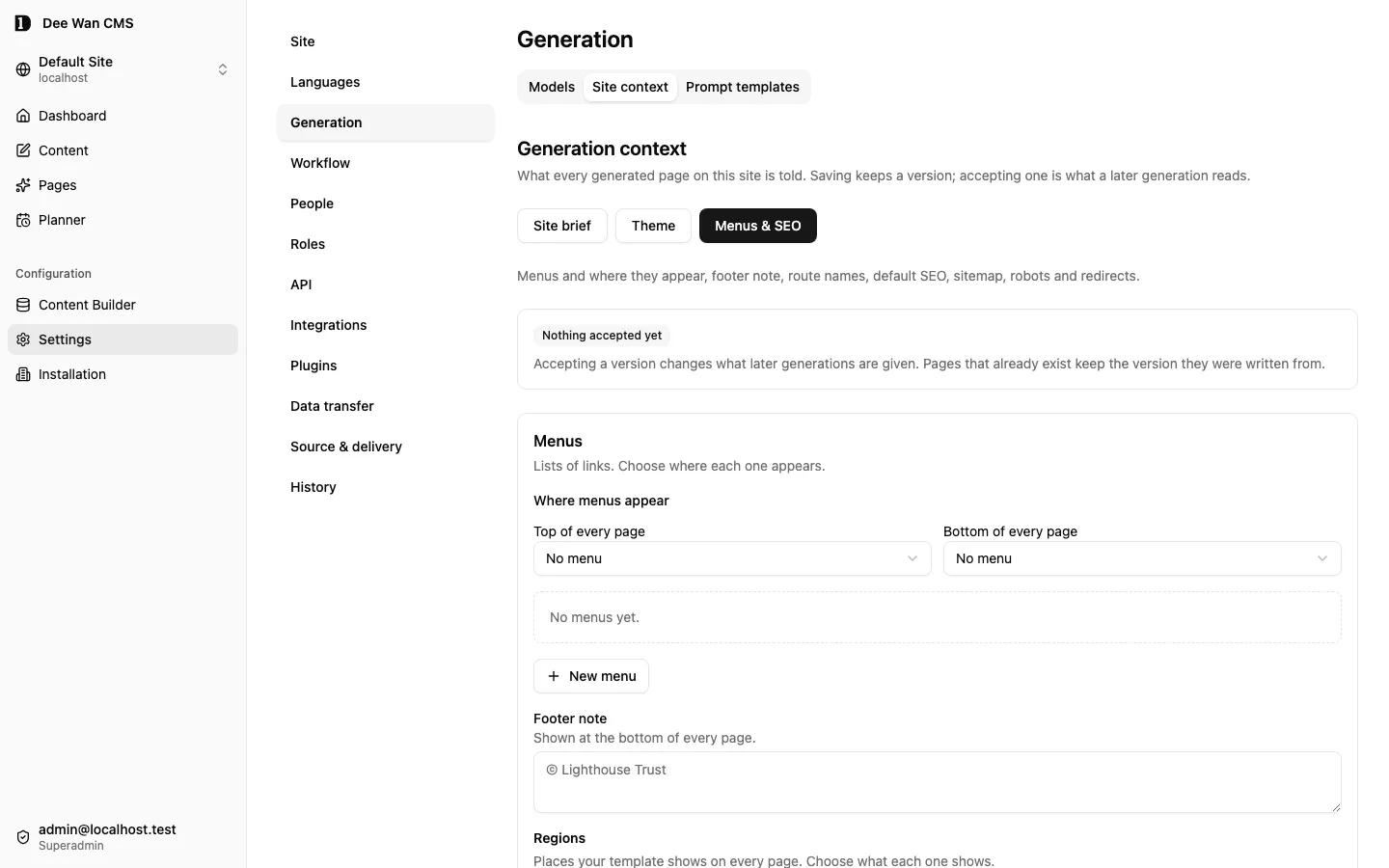
Save a new version keeps a version, with an optional note in What changed (optional). It does not change what pages are generated from. Use this version in Version history accepts a version: later generations use it, and pages that already exist keep the version they were written from. If someone else saved first, nothing is saved and Reload shows their version. Editing these documents needs the site settings permission. Without it they are read only, or not shown at all.
Search and sharing
Section titled “Search and sharing”Search and sharing sits under the page address in Page settings (the page menu) in the page editor, and under the fields in the content editor. It is closed until you open it. It sets, for the language you are editing:
- Search title: replaces the title template for this page. About 60 characters show in results.
- Search description: about 160 characters show in results. Without it, a
descriptionfield is used, then the Site Chrome Site description. - Social image and Image description: shown when the page is shared. Without it, the Site Chrome Default social image is used.
- Canonical address: an
httpsaddress or a path on this site, only when another address serves the main copy of this page. - Hide from search engines: the page asks not to be indexed, leaves the sitemap and is not listed as another language of its translations.
- Page type: Ordinary page, About page, Contact page or Article. Search engines read it from the page’s structured data.
Nothing here is filled in from the page’s text or images. Save search settings saves a version
like any other save. The live page changes only when that version is published. Save or discard
other changes on the screen first. The management API takes the same seo key on an entry save and
on a page save. A site copy and a history transfer carry the overrides of every version (bundle
1.7), with the social image moved to the copy’s media. Delivering a standalone backend moves social images, the default one
included, to the adopter’s media storage with the rest of the site’s images.
Both renderers write the same head from these values: the meta tags, each verification code as its
engine’s meta tag, and one application/ld+json block. A home page carries WebSite and the
organization or person; a Blog post is a BlogPosting with its date, cover and authors; any other
page is its Page type. A page hidden from search engines carries no structured data. Nothing is
stored as JSON-LD or script: the renderers build it from the values above.
Sitemap. /sitemap.xml is an index. Each model’s live pages are listed in chunks of 5,000 at
/sitemap-<model>-<number>.xml, each page with its last publication and up to 20 images (its social
image, then the images it shows). Hidden pages are left out. On a generated site, page chunks are
written at generation and a Blog’s posts are read live. /robots.txt names the index when indexing
is allowed and the site has an origin.
When a publication moves a live address, for example after the slug changes, publishing adds a permanent redirect from the old address to the new one in Site Chrome and accepts it. The workflow panel says “Redirect created” with both addresses and a link to Menus & SEO → Redirects. A redirect that already pointed at the old address is pointed at the new one, so no visitor follows two hops. When an entry moves back to an address its own redirect held, that redirect is removed. No redirect is made, and the panel says why, when the old address is now used by another page or route, when the redirects would loop, or when Site Chrome already holds 256 address redirects. The publication itself still succeeds. Unaccepted Site Chrome changes are kept and get the same redirect. A draft address change never moves the live page or makes a redirect.
Publishing at an address another redirect holds is refused: a live page would silently disable that redirect. The workflow panel names the address and offers Remove redirect, then publish again. When Site Chrome has unaccepted changes, remove it in Menus & SEO → Redirects instead.
Redirects
Section titled “Redirects”Menus & SEO → Redirects lists each Address on this site and What happens there:
| What happens | Status | Send to |
|---|---|---|
| Moved permanently | 301 | a path on this site or an https address |
| Moved for now | 302 | the same |
| Moved for now, keep form data | 307 | the same |
| Moved permanently, keep form data | 308 | the same |
| Removed | 410 | none: the site’s error page answers with 410 |
| Unavailable for legal reasons | 451 | none: the site’s error page answers with 451 |
Advanced: patterns holds rules for many addresses at once. {name} matches one part of an
address and a final {name*} matches everything after it; Send to may reuse the names, but
never in the host. Examples: /news/{slug} to /blog/{slug}, and /{rest*} to
https://old.example.com/{rest} for everything the site does not serve.
Rules are applied in this order: a live page always wins, then an exact address, then the pattern with the most fixed parts, a one-part pattern before a catch-all. A site holds up to 256 addresses and 32 patterns. Saving refuses, by name:
- a redirect from an address a live page uses, or one the site serves itself (
/sitemap.xmland its chunks,/robots.txt, search, the feed,/preview,/owned/…, the Blog list and archives); - redirects that can lead back to where they started, through any mix of addresses and patterns
(for example
/{rest*}to/archive/{rest}). A second hop that ends is allowed:/news/{slug}to/blog/{slug}beside a catch-all to another domain works, one redirect at a time; - two patterns that can match one address when neither is more specific.
Check covered pages lists the live pages each pattern covers. They keep working; the pattern answers there only when no live page occupies that address. Saving a new or changed pattern needs that check: when the check is out of date, saving stops, shows the covered pages, and Save with these patterns saves.
A generated site pins the accepted rules in its artifact (src/lib/redirects.json) and answers
them from its on-demand 404 route. A managed site reads GET /v1/_redirects and keeps the answer
for 30 seconds. Both run the same matcher, so a rule answers the same way in either.
Languages and permissions
Section titled “Languages and permissions”Each language owns its page: its sections, their order, type, look, style and words. Adding, removing, moving, changing the type of or restyling a section, and every save, change only the language you are editing. Two languages of one page may look completely different.
A language with no page yet shows <Language> has no page yet with two choices:
- Copy starts it from the language chosen beside it: the same sections, order, look and words, under new section identities. A shared section stays a link to the same shared section. Then edit the copy; the source language does not change.
- Start blank starts it with no sections.
Either choice saves one version holding that language only. Nothing is copied until you choose.
In history, a version with several languages offers Restore <language> only: that language gets its sections and page name back from the version, and every other language stays as it is now. Restore still brings back every language of the version. Neither changes what is live.
A refused save changes nothing: no language, fact, page name or version.
People who may only read a page can open it and its history but get no editing controls. Page settings, AI writing, facts, publishing and renderer settings keep their own permission checks.
See Models and fields for the page model, Preview and the generated client for renderer verification, and the page-document contract for the stored shape.
Next step
Section titled “Next step”Next, read Blog sites if your site is a Blog. Otherwise go on to models and fields.
Unreleased / pre-MVP; no stable version
Source revision: fe23db481c422b40e317b92fc98116b4c0c26a87 (modified checkout)
Build date (UTC): 2026-10-18T09:22:34.630Z
Upgrade target: unavailable: modified checkout. Release notes